If you are documenting computer procedures, you probably
need fixed-width type for examples of programming or data
input or output. Even if you are writing about completely
non-computer topics, you may often want to quote a
URI, filename, an email address,
or raw text containing characters which you don’t want
interpreted by LATEX and which needs
to be typeset specially, using a fixed-width font.
4.7.1 Inline verbatim
To specify a word or phrase as verbatim text in
typewriter type within a sentence, use the special command
\verb, followed by the word or phrase
surrounded by any suitable character which does
not occur in the word or phrase itself.
This is a very rare exception to the rule that arguments go
in curly braces.
For example, you could use the plus sign to show a
LATEX command in a manual like this one:
The plus sign is ‘safe’ to use
here because it doesn’t appear in the code you want to
typeset but you could use the grave accent or backtick key
` or the vertical bar
| if the phrase already had a plus sign in
it:
The \verb command has the advantage
that it turns off all special characters (see § 1.7 above) except
the one you use as the delimiter, so you can easily quote
sequences of characters in any computer
syntax — including TEX. However, LATEX will never
break the argument of \verb at a line-end
when formatting a paragraph, even if it contains spaces, so
if it happens to be long, and falls towards the end of a
line, it will stick out into the
margin. See § 1.10.2 above for more information on
line-ends and hyphenation. The argument to
\verb MUST
NOT contain a linebreak in your editor:
this will cause it to fail. See also the warning about using
\verb inside
\footnote.
4.7.1.1 Typesetting URIs
URIs are a special case which would cause problems
when typesetting: legibility and line-breaks in long web
addresses. LATEX overcomes with these with the
url package (also used by the
hyperref package which can make
URIs into links).
- Visible accuracy
It is important for URIs to
be visibly accurate, so they can be copied and
retyped from print.
It is therefore
ESSENTIAL to use a
typeface which distinguishes clearly between 1
(digit one), l (lowercase ell) and I (uppercase
eye), and between 0 (zero) and O (uppercase oh).
Monospaced ‘typewriter’ type
usually makes this clear, but many sans-serif fonts
do not. It is a common error by designers to fail to
distinguish URIs in this
way.
- Intrusive hyphens
URIs (especially long ones)
must never have a hyphen added if they have to be
broken over a line-end, because it might be mistaken
(and retyped) by the user as a real hyphen needed as
a part of the address. Conversely, any existing
hyphen must never be used at a line-end to avoid
exactly this confusion.
Handling a URI therefore
means being able to perform a hyphenless line-break,
but only at some existing
punctuation characters — principally the slash and
the dot — but not usually the hyphen. The url package does
the line-breaking and will
never add new hyphens.
The url package provides the
command \url which works in the same way
as \verb, but uses the standard curly
braces to enclose the address, eg \url{https://latex.silmaril.ie} —
the command understands the syntax of a
URI
(Berners-Lee, Fielding & Masinter, 2005) and will never break
mid-way through an unpunctuated word, only at slashes and
full points (and never at embedded hyphens except in rare
circumstances when the hyphen package
option is used).
Bear in mind, however, that spaces and
non-ASCII characters are
invalid in URIs, so using spaces in a
\url argument will cause it to fail, as
will using other non-URI-valid
characters.
The hyperref package mentioned
above makes hyperlinks for cross-references, citations,
and URIs which are clickable in
LATEX’s PDFs (it’s used in the
PDF version of this document). It can
also make footnote links clickable, although because they
are usually on the same page, this is probably not needed
in most documents.
You can load the package with footnote links turned
off, and the different classes of link (cross-references,
citations, and URIs) can be in
different colours:
\usepackage[hyperfootnotes=false]{hyperref}
\hypersetup{linkcolor=DarkGreen,citecolor=DarkRed,
            urlcolor=Blue,pdfborder=0 0 0,
            allbordercolors=0 0 0,colorlinks=true}
\AtBeginDocument{\renewcommand{\UrlFont}{\ttfamily}}
In some systems, links get borders drawn around them,
but in the example above they are turned off by making
their colour invisible (0 0 0). The
hyperref package likes to use the roman
font for URIs (normally A Bad Idea as
we saw above in item ‘Visible accuracy’ above) but this can be
turned off by changing the value of
\UrlFont back to
ttfamily.
Exercise 4.6 — Try some fixed-format text
Add your email address and home page
URI using the
\verb and \url
commands. You’ll need to add
\usepackage{url} to
your Preamble
for the latter.
Load the listings package and try the
\lstinline command to do the
same.
4.7.1.2 Enhanced inline verbatim
The listings package, which we look
at more below for display verbatim, also has an inline
form. This can use colour to highlight your examples based
on the language you are documenting — I am using it
extensively in the PDF of this
book.
The command \lstinline uses the same
syntax as \verb (two matching but
otherwise unused characters) to enclose the argument, but
it provides for very extensive options to specify the
language, font, size, style, and formatting. The most
useful option is the language, of which about 100 are
predefined, from ADA to
Verilog, and you can add new
keywords and even whole new languages.
This is probably the most effective way to show
computer-language examples inline, because it handles the
syntax-based enhancement (colourisation) for you. It is,
however, still subject to the same limitations as
\verb, in that the code must fit on the
space available in the line, or it will stick out into the
margin.
4.7.2 Display verbatim
For longer (multiline) chunks of fixed-format text like
examples of programming, use the verbatim
environment. Like \verb, this turns off
all special characters, so you can include anything at all
in the verbatim text except the exact line
\end{verbatim}, which
MUST occur on a line by
itself, starting at the beginning of the line
(not indented).
\begin{verbatim}
\documentclass[11pt,a4paper,oneside]{report}
\begin{document}

\title{Practical Typesetting}
\author{Peter Flynn\\Silmaril Consultants}
\date{December 2004}
\maketitle

\end{document}
\end{verbatim}
For more control over formatting there are two useful
packages: the verbatim package, which
overcomes a few of the limitations of the built-in
verbatim environment; and the
fancyvrb package, which provides much
greater flexibility with a Verbatim
environment (note the capital letter).
However, as mentioned above, the much more powerful
environments for code listings provided by the
listings have the ability to colour the
keywords of a program according to the language used, and
they can also add rules, interpret internal formatting, and
include external files, and let you add your own language
definitions for new languages. The penalty is a slightly
more complex configuration, but if you are documenting any
kind of computer code in significant quantities, the quality
and usability of the result is well worth it.
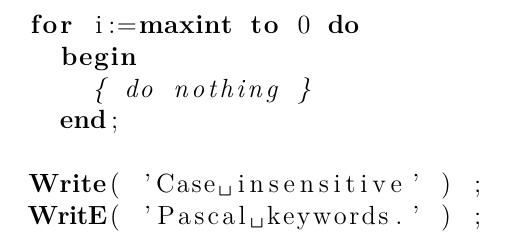
The listings package has some
specific defaults which (in my experience) most users prefer
to override. By default it uses the current font,
not the monospace font normally
expected for listings; possibly because its advanced
per-language formatting can create more human-readable code
in a variable-width font (see Figure 4.6 below).
Figure 4.6: Example of the listings package
default creating a listing of some Pascal code.
\begin{lstlisting}[language=Pascal]
    for i:=maxint to 0 do
      begin
        { do nothing }
      end;

    Write( 'Case insensitive' ) ;
    WritE( 'Pascal keywords.' ) ;
\end{lstlisting}
Colours for a language can be set independently for
keywords, identifiers, comments, and strings. Type size is
also configurable, as are background colour, framing,
alignment, and character mapping (important if your listing
contains non-ASCII characters). It's also
possible to define new languages not currently
covered.
\documentclass[11pt,a4paper,oneside]{report}
\begin{document}

\title{Practical Typesetting}
\author{Peter Flynn\\Silmaril Consultants}
\date{December 2026}
\maketitle

\end{document}
As an example, the settings used in this book include
the following:
\lstdefinelanguage{LaTeXe}{%
  language     = [LaTeX]TeX,
  morekeywords = {selectlanguage,foreignlanguage,textbrokenbar,%
  textlangle,textrangle,subsection,url,chapter,tableofcontents,%
  part,subsubsection,paragraph,subparagraph,maketitle,setlength,%
  listoffigures,listoftables,color,arraybackslash,includegraphics,%
  textcite,parencite,footcite,graphicspath,lstinline,DeclareLanguageMapping,
  textcolor,definecolor,colorbox,fcolorbox,setmainfont,setsansfont,%
  setmonofont,fancyhead,fancyfoot,printbibliography,Extension,Path,%
  UprightFont,BoldFont,ItalicFont,BoldItalicFont,newfontfamily,%
  newfontface,lstset,lstinline},
}
\lstset{defaultdialect=LaTeXe,frame=single,framesep=6pt,
  backgroundcolor=\color{AliceBlue},
  rulecolor=\color{LightSteelBlue},framerule=1pt}
\newcommand\basicdefault[1]{%
  \color{Black}\fontsize{\f@size}{\f@baselineskip}\selectfont\ttfamily#1}
\lstset{basicstyle=\basicdefault{\spaceskip.5em}}
\lstset{keywordstyle=\color{DarkGreen}\bfseries,
  identifierstyle=\color{Maroon},
  commentstyle=\color{Gray}\upshape,
  stringstyle=\color{DarkBlue}\upshape,
  emphstyle=\color{Chocolate}\upshape,
  showstringspaces=false,
  columns=fullflexible,
  keepspaces=true}%